Translating codes — Mapping tables
A Link matches a source column to a dimension by item
code. That works when both sides agree on the coding — and they usually
don't. Your accounting system exports account 620100; your P&L has a line
called OPEX. Nothing in the Link can bridge that gap, so every row lands
nowhere.
A Mapping table is the bridge: a saved list of rules, each one saying this source code becomes that destination item. You build it once in the Data section and point as many Links at it as you like.
| Source | Destination | Sign |
|---|---|---|
620100 |
OPEX |
= |
620200 |
OPEX |
= |
70* |
REVENUE |
− |
641000 |
PAYROLL |
= |
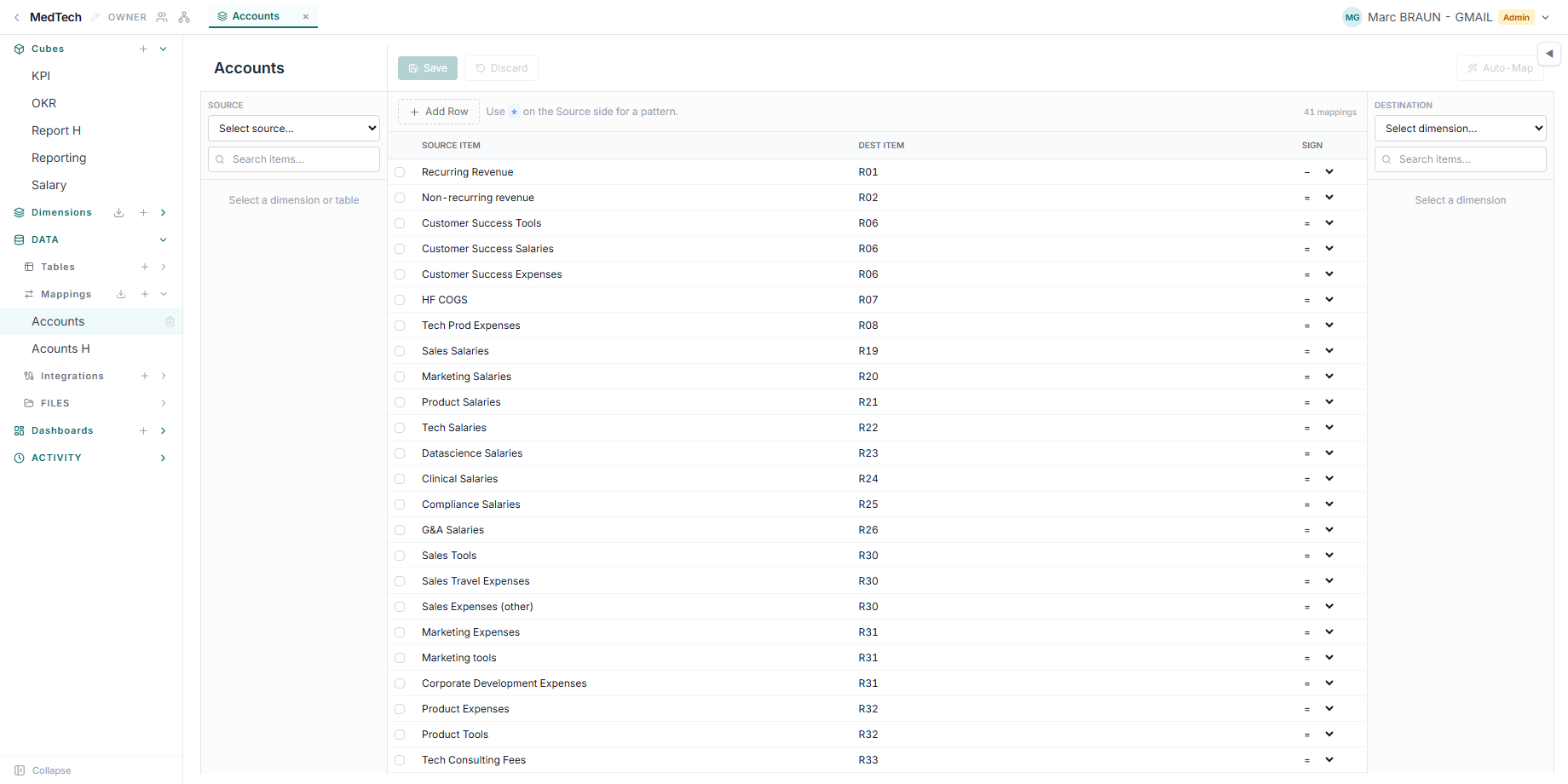
Two source codes can map to the same destination — that is how a detailed chart of accounts collapses into a reporting line. Rows landing on the same cell sum, exactly as they would without a mapping.
The sign
Each rule also decides what happens to the value:
- = passes it through unchanged;
- − inverts it. This is the workhorse for accounting sources, which commonly deliver revenue and liabilities as credits — negative numbers you want positive in a report;
- abs takes the magnitude, for sources whose polarity is inconsistent.
How a code is matched
- Exact codes win.
620100is looked up first, before any pattern. - A trailing
*is a prefix pattern.70*matches700000,701200, and so on. The*only works at the end, and only on the source side — a pattern in the destination column matches nothing. - Among patterns, the first listed wins. If
6*sits above62*, the broader rule catches everything and62*never fires. List your specific patterns before your catch-alls. - Blank cells need their own rule. Write
<blank>on the source side to say where empty or missing source values go. No pattern, not even*, matches a blank — a blank code is usually a subtotal or header row you want to see, not fold into a catch-all. The same token works without a mapping table: a column matched directly to a dimension lands its blank cells on the item coded<blank>, if the dimension has one. - Case never matters, on either side.
620100matches whatever the source sends, andopexfinds anOPEXitem on the destination dimension. What the destination code still has to be is a real item code on that dimension — a destination that names no item skips those rows, and the run reports them as unmatched.
Split by balance sign
Some accounts don't belong on one statement line — they belong on one of
two, depending on which way the balance sits. A bank account
(512*) is normally an asset, but the same account overdrawn is a liability.
A customer account (411*) is normally a receivable, but a customer who
prepaid sits on the liability side as a credit received. A single rule with a
sign column can't express that, because the sign column only changes the
value, never the destination.
Split by balance sign is a second, conditional destination on the same row: the row's per-row "Split by balance sign" toggle reveals a second destination and a second sign, and the two columns are labelled Debit balance and Credit balance. A balance ≥ 0 (a debit) goes to the row's main destination; a balance < 0 (a credit) goes to the credit-branch destination instead. Zero never routes anywhere, because a zero balance writes nothing regardless.
The five families that come up constantly under a French chart of accounts (PCG art. 121-3, the non-compensation rule):
| Accounts | Debit balance → | Credit balance → |
|---|---|---|
512* banks |
Disponibilités (asset) | Concours bancaires courants (liability) |
451* / 455* group and associates |
Autres créances (asset) | Emprunts et dettes financières diverses (liability) |
401* suppliers |
Fournisseurs débiteurs — avances et acomptes versés (asset) | Dettes fournisseurs (liability) |
411* customers |
Créances clients (asset) | Clients créditeurs — avances et acomptes reçus (liability) |
444* income tax |
État, IS — créance (asset) | État, IS — dette (liability) |
On the liability side, set the credit branch's sign to invert: the
underlying balance is negative and a liability line should display positive.
abs works too but is redundant once a branch only ever sees one sign.
This only means anything against a stock, not a movement — the mapping table has to see each account's closing balance, not one journal line at a time. That's why a split row is only valid on a Data-Table Link running in Closing balances mode (see Build financial statements from a ledger export for how that mode groups rows into per-account balances before matching). Anywhere else — a movements link, or a URL, file or integration link — a table containing a split row is refused outright, with an error naming the link or the import path, rather than silently applying the debit branch to everything.
Two things to watch for once a table has split rows:
- The AI/MCP "merge" update mode replaces a whole entry. If you merge in an update to a split row's debit branch without resending the credit branch, the credit branch is dropped, not kept. Send both branches every time you touch the row through the API or an AI tool.
- Copying rows out of the grid and pasting them back keeps only the debit side. The credit branch doesn't travel through copy-paste, so a round-tripped row loses its split silently — re-check the toggle after pasting.
When a code isn't matched
Nothing goes wrong loudly. A source value with no matching rule is skipped — its row simply doesn't arrive, and the cube shows a smaller number than the source. A destination code that doesn't exist behaves the same way.
A blank source cell with no <blank> rule (or, on a directly matched column,
no <blank> item) is skipped too, and the report names it as <blank> so you
can tell it apart from a mistyped code. Every list of source values in the
product uses that same word for a blank cell.
So the habit that matters: Preview the Link before you run it. The preview reports how many source rows would be skipped, and a surprising skip count is how a missing or mistyped rule announces itself. Once the values are in the cube, the only clue is a total that looks slightly wrong.
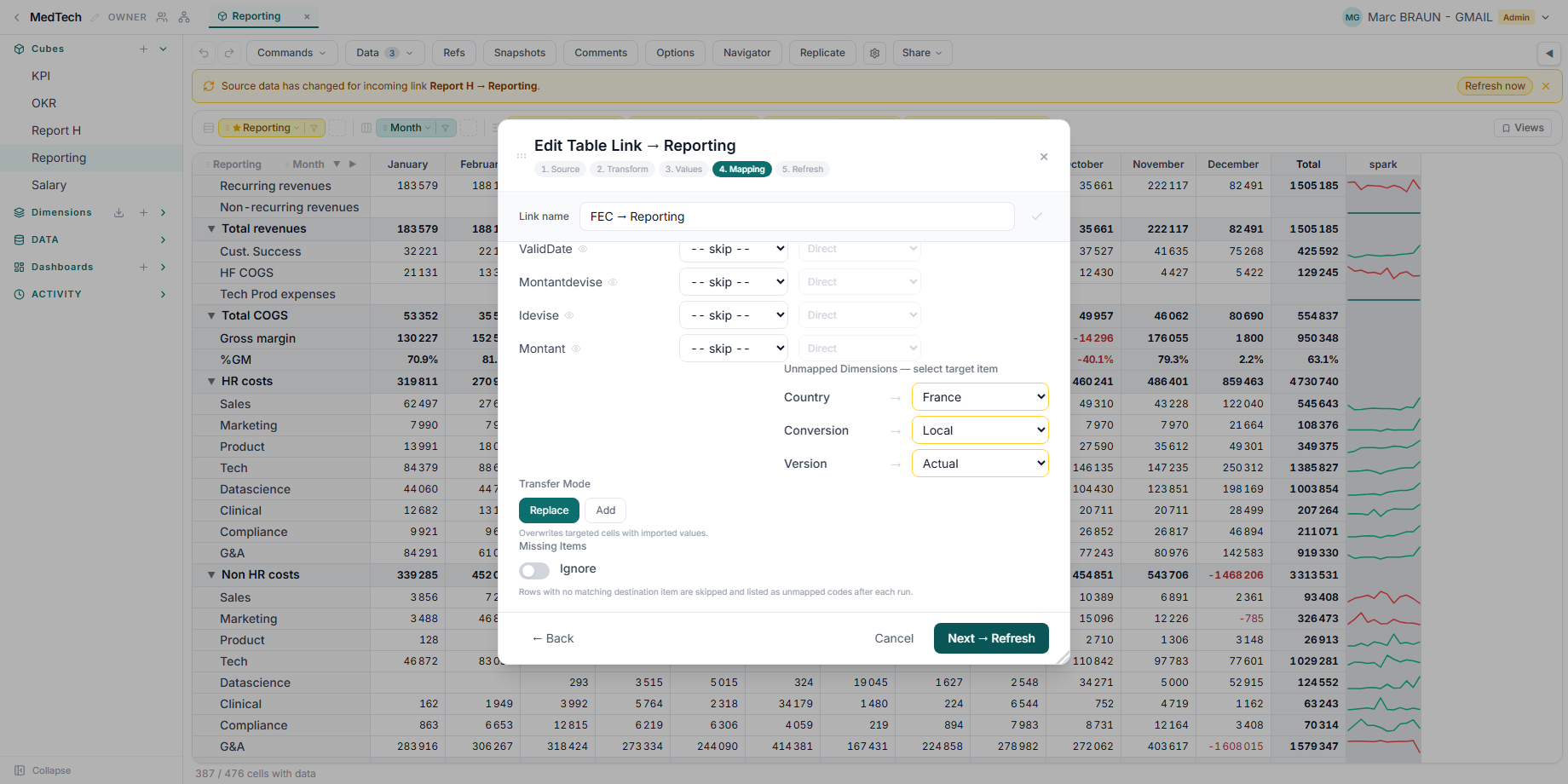
A run normally carries that warning forward too: an amber unmatched report naming the codes no rule covered. Where the gap is deliberate — a source whose scope is wider than this cube, so most of its codes are meant to fall away — the Mapping step's Missing items: Ignore switch drops that report, and the run stops nagging. It changes nothing about the transfer: those rows are still skipped, and the skipped count still shows. Only the per-code detail goes away, and only on runs — the editor's preview keeps the full diagnostic on purpose, since that is where you decide whether ignoring them is right.
Using one
Mapping tables live in the Data section, alongside your files and tables. Create one, set its source and destination dimensions (optional, but worth doing — XCubes then warns you about destination codes that don't exist), and fill in the rules. Auto-map can propose matches from the item codes and descriptions on both sides, which you then review.
The source side does not have to be a dimension. Point it at a column of a data table instead — the table, the sheet, then the column — or at a column of an Excel or CSV file in the project's Files area, the same file a Link reads, and the editor lists that column's distinct values with the number of rows behind each. That is usually the better source: it is what the file actually contains, rather than the codes you hope it contains, so a value with no rule is visible as an unmapped entry instead of turning up later as a skipped row.
In the Link editor, each source column can either match codes directly or go through a mapping table — you pick the table per column. One crosswalk can serve every Link that reads the same source system.
See Populating cubes — Links & integrations for the transfer itself, and Dimensions for where the destination item codes come from. For the end-to-end method — reconciling a ledger export into statements that tie line-by-line on the first run — see Build financial statements from a ledger export.